Skip to content

Product

Every tool in Fluid CM.

Four tabs hold every tool on the job. This page lists each tool and what it does. The screens are from the sample project in the app.

Field

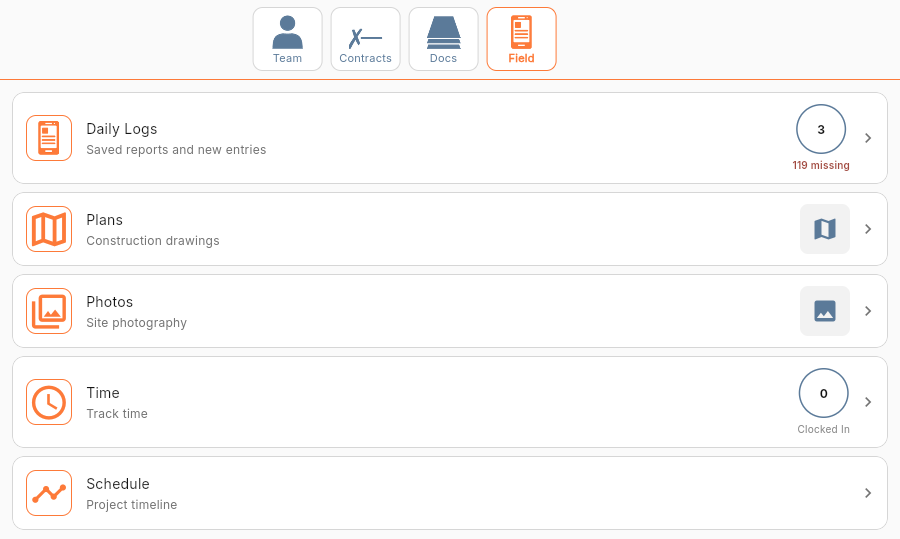
The Field tab of the sample project. It lists Daily Logs, Plans, Photos, Time and Schedule.
From the sample project in Fluid CM.

Daily Logs

Free

The record of what happened on site, written the day it happened.

  • A dated report for each day, kept for the life of the project
  • Weather, crew counts and the work done
  • Site photos attached to the log
  • Voice entry: say the log, then review the draft
  • One combined report from several logs
  • A list of every past log
See Daily Log

Plans

The current drawings for everyone on the job.

  • Upload PDF and image drawings, and sort them into folders
  • A sheet index with search by number, title or text
  • Markup tools: cloud, arrow, text, shapes and freehand
  • Set the scale, then measure in real units
  • Version history, and compare a revision with the one before it
  • Pin an RFI or a photo to a place on the sheet
  • Share a marked-up PDF, or send a link that needs no login

Photos

Free

Site photos in one shared library.

  • Take a photo or upload one from the device
  • Date, time and project recorded for you
  • Descriptions and tags
  • A gallery with filters
  • Every photo is open to the project team

Punch List

Open items, from the walkthrough to close-out.

  • Items with a description and a photo
  • Assign each item to the responsible party
  • Due dates and priorities
  • Status from open to complete, with reopen
  • Before and after photos
  • Export the list as a PDF

Time

Free

Crew hours by job and cost code.

  • Clock in and out from a phone
  • Kiosk mode for a shared tablet on site
  • Hours coded to the cost code
  • An optional GPS trail and job site geofence
  • A foreman view of the whole crew
  • Approval: pending, then approved or rejected
  • Shift schedules and time-off requests
See Time Card

Schedule

The project timeline.

  • A Gantt chart with day, week and month views
  • Activities, milestones and dependencies
  • A baseline to compare against
  • Import from Excel
  • Export to Excel or PDF

Docs

The paper trail, in order.

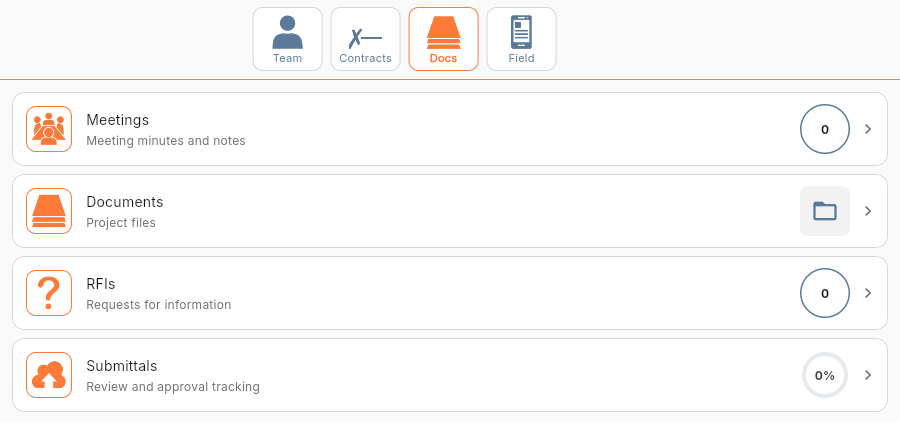
The Docs tab of the sample project. It lists Meetings, Documents, RFIs and Submittals.
From the sample project in Fluid CM.

Meetings

Meeting minutes the whole team can find again.

  • A meeting log with date and subject
  • Attendees
  • Business items and action items
  • Attached documents
  • Search across past meetings

Documents

Project files in one place.

  • Folders for contracts, specifications, reports and the rest
  • A built-in PDF viewer
  • Upload any file type
  • Keep a file on the device for offline use
  • Search by file name

RFIs

Questions to the design team, with the answer on record.

  • RFIs numbered for you
  • Status: open, responded, closed
  • Cost impact and schedule impact flags
  • Priority and a required response date
  • Attach photos, drawings and markups
  • Export one RFI as a PDF, or the whole log to Excel

Submittals

Shop drawings and product data, routed for approval.

  • A submittal log, numbered for you
  • Specification sections
  • Review status on every item
  • Revisions and resubmittals
  • Required response dates
  • Export to PDF or Excel

Contracts

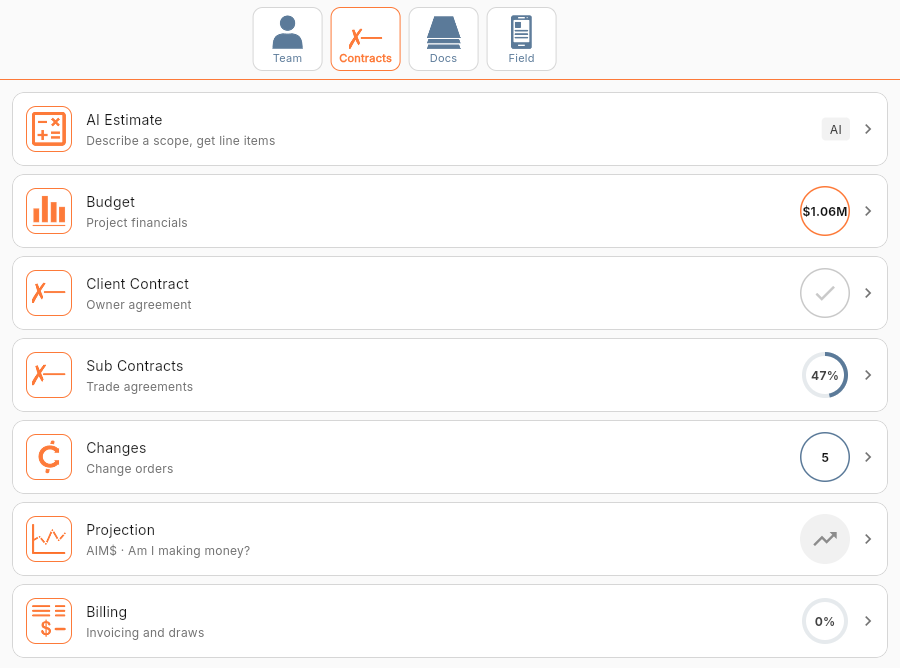
The Contracts tab of the sample project. It lists AI Estimate, Budget, Client Contract, Sub Contracts, Changes, Projection and Billing.
From the sample project in Fluid CM.

Budget

The budget by cost code, against what the job has cost.

  • Budget lines by cost code
  • Split by labor, equipment, material, subcontract and other
  • Budget against actual cost on every line
  • Approved change orders feed in for you
  • Lock the budget as the baseline
  • Import a budget from a file
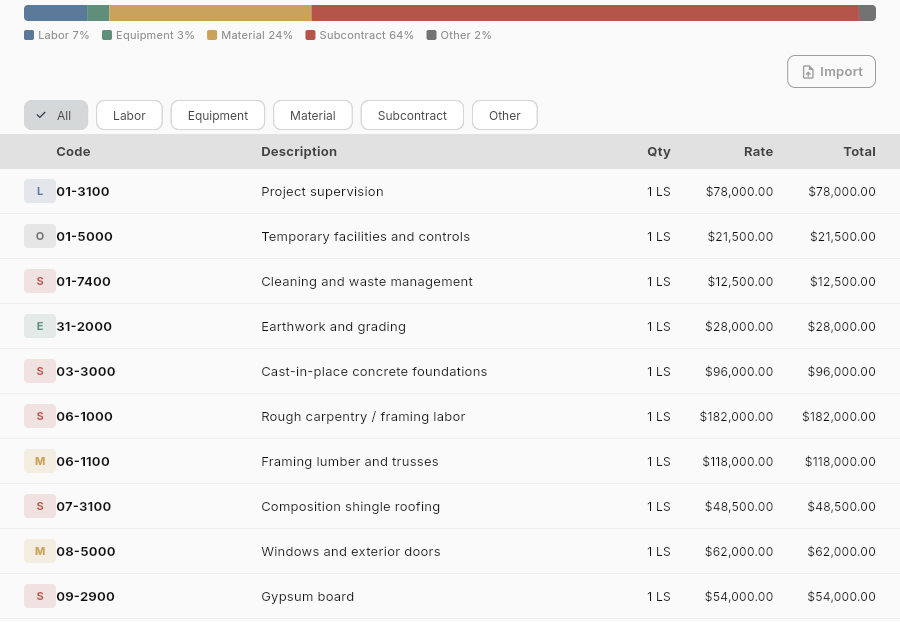
The Budget Summary of the sample project. A bar shows the split between labor, equipment, material, subcontract and other. Below it, a table lists each cost code with its description, quantity, rate and total.
From the sample project in Fluid CM.

Client Contract

Free

The owner agreement and the contract value.

  • A contract summary with the contract value
  • The value updates when a change order is approved
  • The contract document, attached
  • Amendments on record

Sub Contracts

Free

Trade agreements and how much of the job is bought out.

  • Every subcontract, with the percentage bought out
  • Scope and value for each agreement
  • Purchase orders as a contract type
  • Documents attached to each subcontract

Changes

Free

Every change order, with an amount and a status.

  • A numbered change order log
  • An amount to add or deduct
  • A reason on every change
  • Status: draft, pending, approved or rejected
  • An approved change updates the contract value and the budget
  • Attach photos and documents
See Change Orders

Projection

Where the job is heading, before it gets there.

  • Projected final cost against the budget
  • Variance by cost code
  • An estimate to complete on each line
  • Warnings when the margin or the spending is off track
See AIM$?

Billing

Pay applications to the owner.

  • Create a pay application for each period
  • A schedule of values with percent complete
  • Retainage
  • Status: draft, submitted, paid
  • A history of every application

Team

Who is on the job and what they can see.

Team chat

Project messages in one place, not in ten text threads.

  • Project channels and direct messages
  • Mention a teammate by name
  • Threads for replies
  • Search the full history
  • Attach files and photos

Contacts

Free

Everyone on the job, in one list.

  • Owners, subcontractors, vendors, consultants and inspectors
  • Name, company, phone, email and role
  • Search the list
  • Add and edit contacts
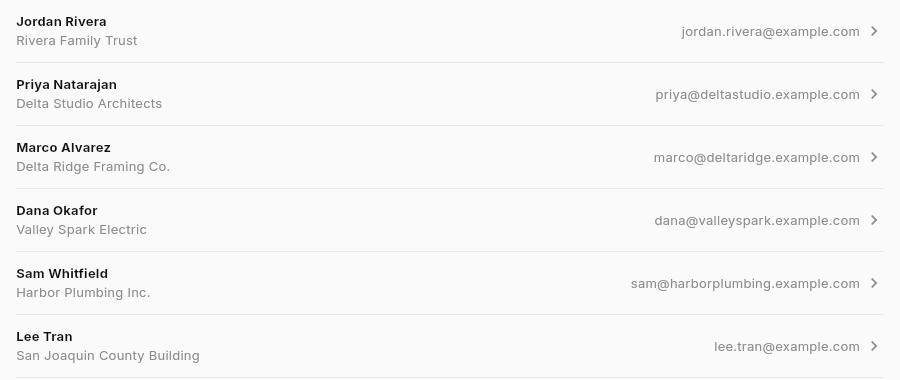
The Contacts list of the sample project. Six sample contacts are shown, each with a company and an email address.
From the sample project in Fluid CM.

Permissions

Free

Who can see and do what.

  • Set access tool by tool
  • Four levels: none, read, write and admin
  • Defaults by role
  • A change takes effect at once

Across every tab

The two parts that tie the tools together.

AIM$?

Am I making money? The process that keeps the job on budget.

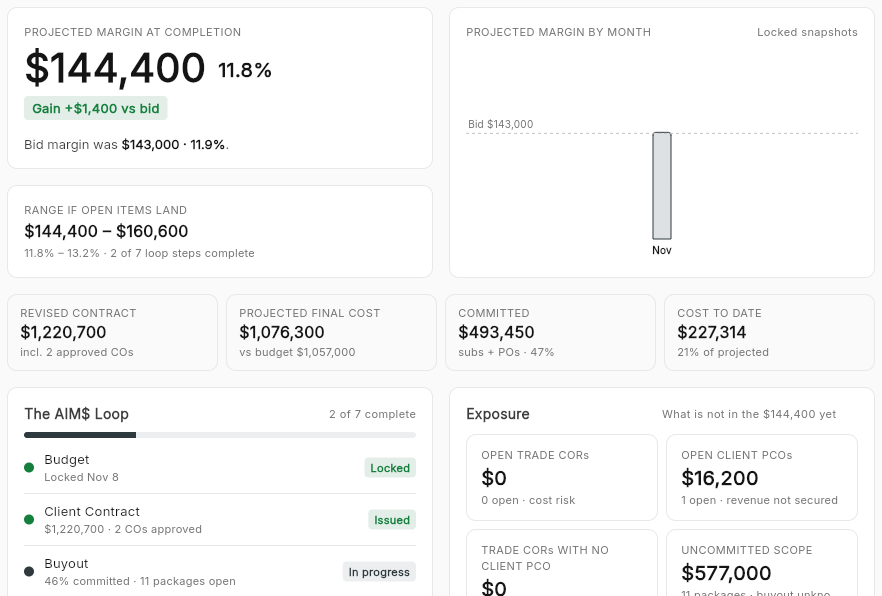
  • Projected margin at completion, against your bid
  • The range if the open items land
  • Revised contract, projected final cost, committed cost and cost to date
  • The AIM$ Loop: the steps, and which ones are done
  • Exposure: open change orders and scope not bought out, in dollars
  • Lock each month to keep a record of the projection
The AIM$? dashboard of the sample project. It shows projected margin at completion, the range if open items land, the revised contract, projected final cost, committed cost, cost to date, the AIM$ Loop and the exposure.
From the sample project in Fluid CM.
See AIM$?

Flow

Free

The AI agent inside Fluid CM, powered by Claude.

  • On every screen
  • Knows which project and which screen you are on
  • Answers questions from your project records
  • Writes first drafts, such as a daily log
  • A briefing of the decisions and alerts that need you
  • Explains how any tool works
Meet Flow

Run your next job in one place.